Quick answer: Define the result set as the notes that satisfy both the selected category and the search query. State which fields are searched, how the query is normalized, and what each reset control changes. Then give the AI assistant a tiny set of notes with expected results. The expected results make the feature reviewable in the actual app.
This guide uses a fictional notes app with a title, body, and category on each note. The rules are design choices for an example, not a claim about an existing app.
Write one result rule before building the controls
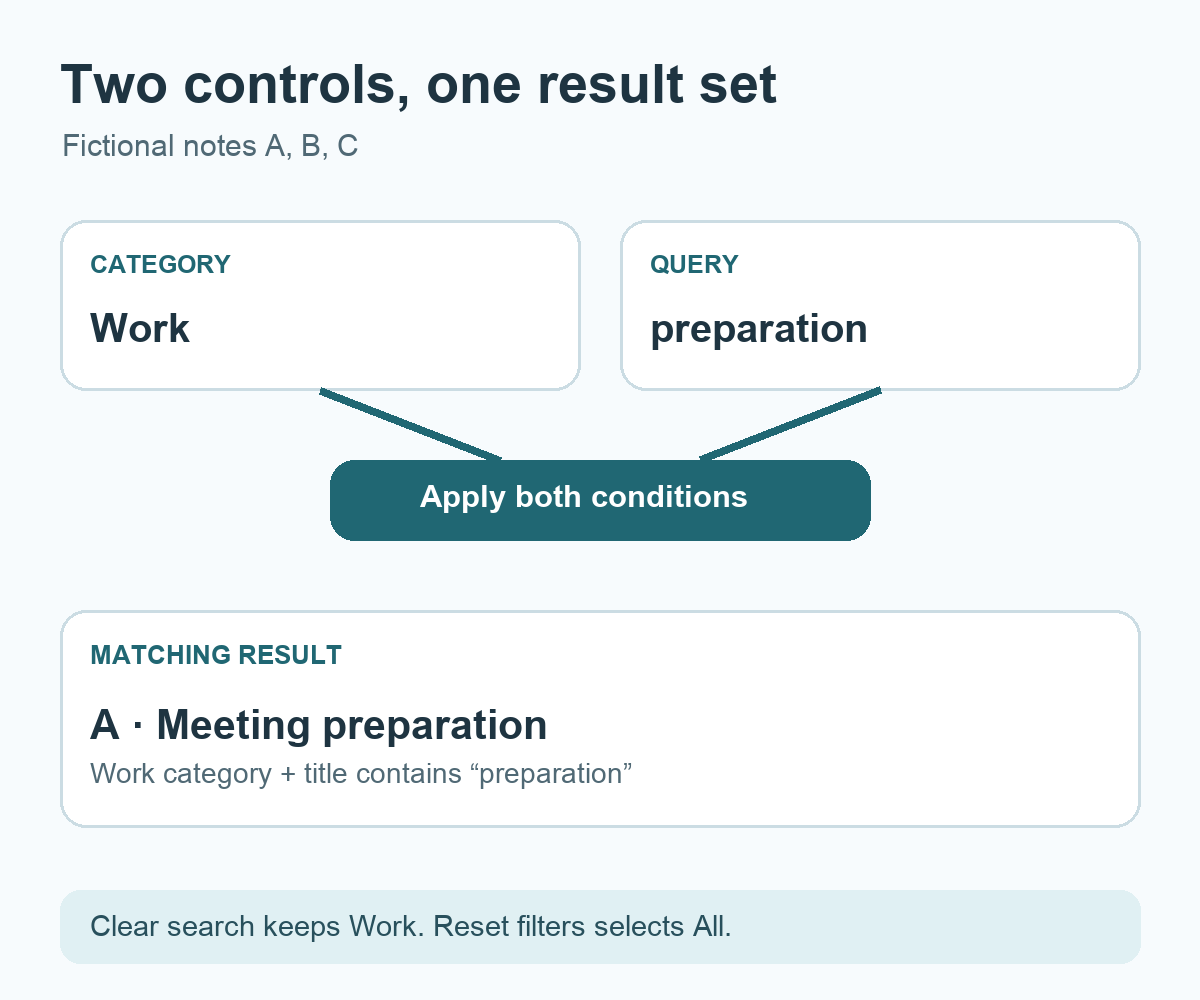
For this version, the category is applied first. The query then searches the title and body within that category. “All” means no category restriction. A note appears when its category matches the selected category, if any, and its title or body contains the normalized query. An empty query leaves the category filter active.
The interface should show the active category and query together near the result count. A heading such as “Work · preparation · 1 result” gives readers the scope of the list without asking them to remember two controls. If no notes match, show the active conditions and offer a way to adjust them.
Choose normalization rules explicitly
Trim spaces at the beginning and end of the query. For English text, compare in the same letter case, such as by converting both sides to lowercase. Keep internal spaces as typed in this first version. Searching “meeting prep” therefore differs from “meetingprep.” Korean initial-consonant matching, spelling correction, and server-side search are separate features to specify if needed.
Choose how notes with an empty title or body behave. Treat an absent field as an empty string for this example. Do not silently search hidden metadata or other categories; a future search scope can be added as a separate, visible choice.
Use three notes as an acceptance example
| Note | Category | Title |
|---|---|---|
| A | Work | Meeting preparation |
| B | Personal | Weekend preparation |
| C | Work | Email review |
Assume the bodies do not contain the example query. With category “All” and query “preparation,” the expected results are A and B. With category “Work” and the same query, only A appears. Clear the query while keeping “Work” selected, and A and C appear. These are expected outcomes for the fictional data; run the same steps in the implemented app to obtain actual results.
Distinguish two reset actions
“Clear search” empties the query and keeps the category selection. “Reset filters” empties the query and selects “All.” Give these actions separate labels and check that the result list and count update together. A zero-result view can offer either action, but should describe which setting it changes.
Build a search field and category filter for a notes list. Apply the selected category before searching title and body for a case-insensitive partial match. Trim leading and trailing query spaces. Preserve internal spaces. Clearing the query must keep the category; resetting filters must select All and clear the query. Show active conditions and result count, including for zero results. Use notes A, B, and C from the table as acceptance examples. Keep initial-consonant and server-side search outside this version.
Check the implemented screen
Enter the three practice notes and compare the three expected result sets above with what the screen displays. Try a query with surrounding spaces and mixed English case. Enter quotation marks or punctuation to see whether the app continues to apply the chosen literal-match rule. If search later moves to a server, also specify what happens when a response for an earlier query arrives after a newer one.
Try it: Write your category-and-query rule in one sentence, then create a three-row expected-results table before asking for implementation. The diagram below summarizes the two inputs and their combined result.
Read the Korean edition of this article.


댓글