Quick answer: If one Excel cell holds several fields separated by a consistent character, use TEXTSPLIT to place them in adjacent cells. For a registration row such as Guest01|Morning|Workshop, the formula =TEXTSPLIT(A2,"|") can fill three columns while the original stays in A2.
This tutorial uses fictional entries without personal details. The displayed outputs are expected examples, not results from a user workbook. Microsoft lists TEXTSPLIT for Excel for Microsoft 365 and Excel 2024, including their Mac versions; check the receiving workbook environment before sharing a formula-based file.
Name the fields before splitting
Put the source string in A2, and put the headers Guest, Session, and Activity in B1:D1. Here the vertical bar | marks the boundary between fields. The delimiter needs to be absent from the field values themselves. If an activity name can contain a vertical bar, agree on another input format before applying the formula to a full list.
| Source in column A | Expected B: Guest | Expected C: Session | Expected D: Activity |
|---|---|---|---|
| Guest01|Morning|Workshop | Guest01 | Morning | Workshop |
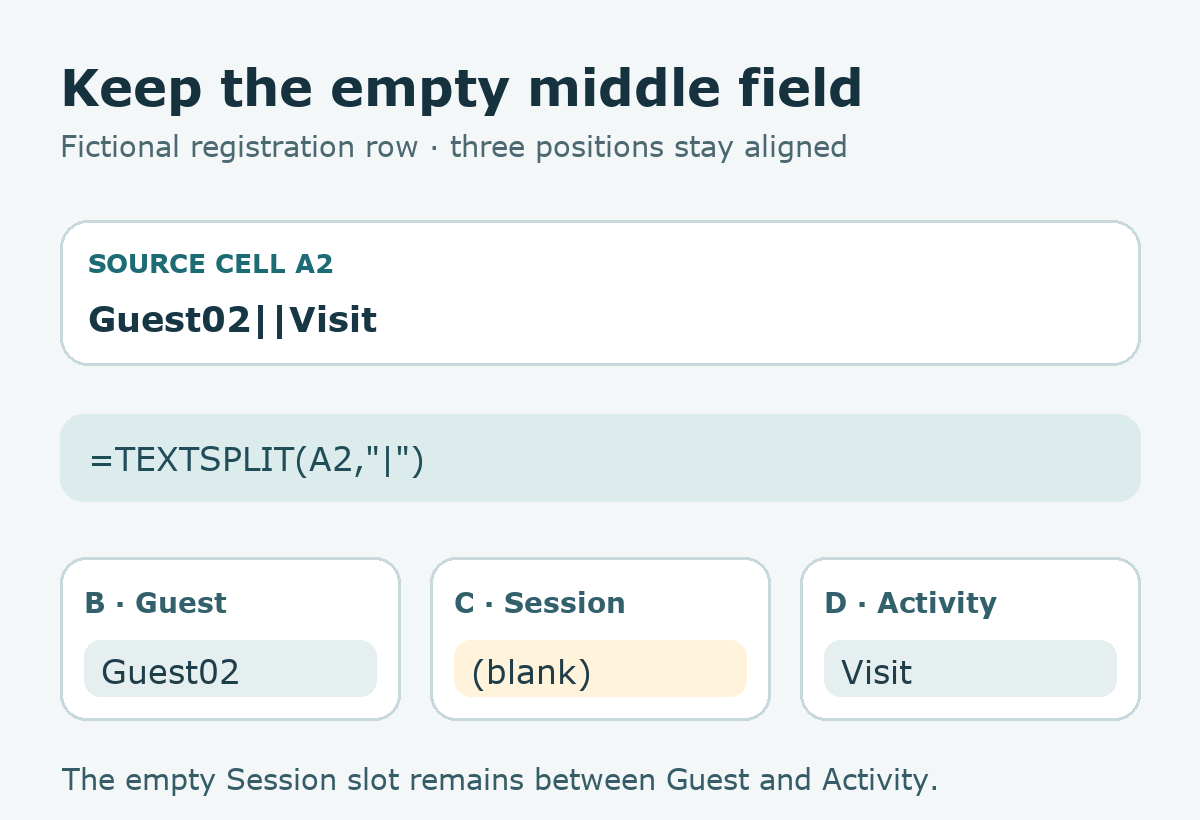
| Guest02||Visit | Guest02 | Empty | Visit |
| Guest03|Afternoon|Workshop|Extra | Review input | Four parts | Review input |
Enter one formula and inspect the spill area
In B2, enter =TEXTSPLIT(A2,"|"). In the first sample row, expect Guest01 in B2, Morning in C2, and Workshop in D2. Leave the destination cells clear so the result can expand across them. Keep A2 as the source until you have checked the split fields. Your Excel regional settings may use a different argument separator, so follow the formula syntax shown in your installation if needed.
Treat an empty field as information
In Guest02||Visit, two adjacent bars mean the Session field is empty. TEXTSPLIT defaults to keeping that empty position, so Activity still belongs in the third output column. Microsoft documents the optional ignore_empty argument; setting it to TRUE skips consecutive delimiters. That is useful for some lists of tags, but it would shift fields in this registration example and change their meanings.
For a separate tag list such as Planning||Design|Build, a formula like =TEXTSPLIT(A4,"|",,TRUE) can omit the empty tag. Keep that tag example separate from the registration table. A single cleanup rule does not fit both datasets.
Review three small cases before a full list
Check a complete three-part row, a row with a meaningful blank middle field, and a row with an extra delimiter. The last case should trigger review of the source format instead of quietly redefining the columns. Also decide whether spaces around a value are significant; an empty field and a field containing a space are different inputs.
If another person needs only the final data, consider a separate reviewed copy containing values rather than formulas. Keep the source, working formula sheet, and shared copy clearly named so the next batch can use the same documented delimiter and field meanings.
Try it: Enter the three fictional rows above, state the expected column count, and compare the output with the table before processing more entries. The diagram below shows how the middle blank remains a separate slot.
Official reference: Microsoft Support, TEXTSPLIT function (checked 2026-09-23). Read the Korean edition of this article.


댓글