Quick answer: Define what each status means, select the cells that need the rule, and add a Google Sheets dropdown with three choices: Ready, In Progress, and Done. Keep a separate completion-criteria column so “Done” points to an observable result.
This walkthrough uses a fictional event-planning sheet. It explains how to configure a dropdown; it does not report a change to a shared spreadsheet. Menu labels below follow the official Google Sheets computer help checked on September 23, 2026, and can vary by interface language.
Write the status definitions first
For the sample team, Ready means the work has not started, In Progress means someone is doing it, and Done means the named result has been checked. These are working definitions, not a built-in Google rule. Agree on them before setting colors or adding rows. If a task also needs an approval step, write that requirement in another column or revise the shared definitions rather than leaving it implicit.
| Column | Purpose | Example |
|---|---|---|
| A — Task | Name the work | Draft event notice |
| B — Owner role | Show who follows up | Event coordinator |
| C — Status | Choose one stage | In Progress |
| D — Done when | Describe evidence | Time and venue confirmed |
Add the dropdown to the intended rows
In a computer browser, select C2:C20 in the sample sheet. Row 1 is the header, so keep it outside this rule. Open Insert → Dropdown, or choose Data → Data validation → Add rule. In the rule panel, select the criteria option Dropdown, enter Ready, In Progress, and Done, and click Done. The official help also describes Dropdown from a range for choices stored in cells; that option is useful when a maintained source list should supply the values.
For this example, keep one status per cell. If someone needs to explain why a task is waiting, the adjacent note or completion-criteria column can carry that context. Color can make the table easier to scan, but the written status should remain visible so the meaning is available without relying on color alone.
Choose how to handle other text
Google Sheets normally rejects a value that is not in the list. Its advanced options can instead show a warning for an unmatched value. A team seeking consistent status labels can keep the allowed list and put free-form notes in another column. Before applying the rule to a shared table, try one sample cell in a copy and check which behavior supports the team workflow.
Check three row transitions
Add a task and select Ready; verify that the dropdown is on the intended row and the header is untouched. When work begins, change the cell to In Progress and read the owner role beside it. After checking the result named in column D, set Done. Finally, add a row beyond the original range and inspect whether that new status cell has the same rule. A range ending at row 20 does not automatically document a policy for every future row.
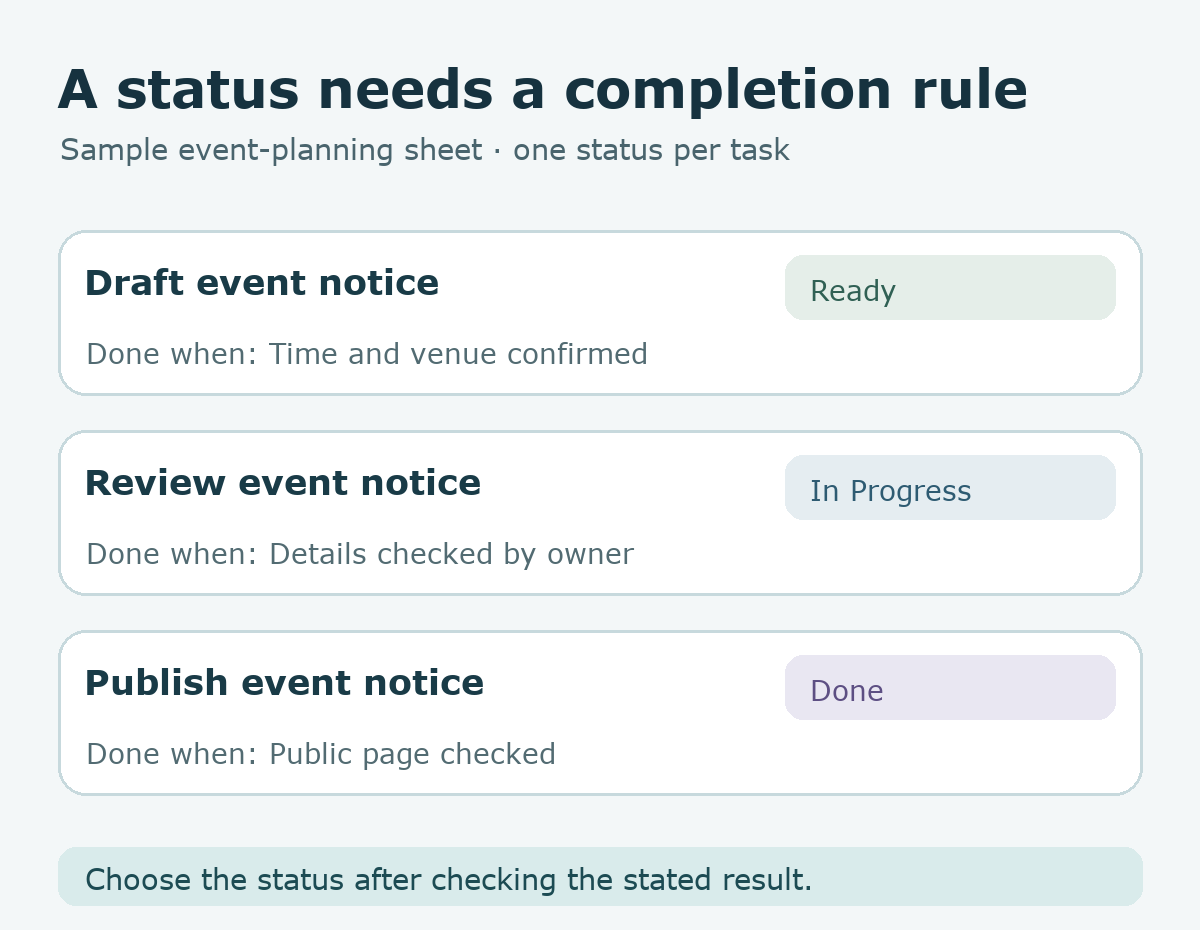
Try it: Build a three-row practice sheet. Write a concrete “Done when” sentence for each task, then apply the dropdown only to the status cells. The diagram below shows how the status and completion evidence sit side by side.
Official reference: Google Docs Editors Help, Create an in-cell dropdown list (checked 2026-09-23). Read the Korean edition of this article.
'English Articles' 카테고리의 다른 글
| Design a Notes Export Button with AI and Verify the Downloaded File (0) | 2026.09.23 |
|---|---|
| Split Registration Fields in Excel with TEXTSPLIT and Preserve Blank Slots (0) | 2026.09.23 |
| Design a Save Button with AI: One Note After Two Taps (0) | 2026.09.23 |
| Turn a Long Notice into Five Informative Cards with AI (0) | 2026.09.23 |
| Organize Research with Chrome Tab Groups: Search, Reading, Sources (0) | 2026.09.23 |


댓글