Set the mouse aside for five minutes and use the keyboard to create one practice note. This simple route shows whether a person can find the title field, enter text, reach Save, understand where focus is, and read the result. It is a useful first check for a new notes app, followed by broader accessibility checks later.
The steps below are a reproducible walkthrough, not a certification of any particular app. Record the browser, page, and date when you run it so the observation can be repeated after changes.
Use elements that match their jobs
A navigation destination belongs in a link. An action such as Save belongs in a button. Text entry belongs in a labeled input or text area. Native HTML controls supply expected keyboard behavior and roles. MDN's HTML accessibility guide explains the value of semantic elements, and its button reference covers accessible button names.
Use a visible label such as “Note title” for the title field. An icon-only control still needs a name that says what it does. Preserve a visible focus indicator so someone can tell which control will receive the next key. Read the screen in its visual and keyboard order; the sequence should follow the task a person is trying to complete.
A five-minute route to perform
| Step | Key or action | What to observe |
|---|---|---|
| 1 | Open the page, press Tab | First interactive control is identifiable |
| 2 | Reach the title field | Visible label and focus are clear |
| 3 | Enter practice title and body | Text remains while moving between fields |
| 4 | Reach Save, press Enter or Space | Note is saved and result is announced or shown |
| 5 | Press Shift+Tab | Focus moves back in a useful sequence |
Choose neutral practice content, such as “Test note 01.” If pressing Enter in a multiline body creates a new line rather than saving, that is an expected distinction to document. Test the button itself with Enter and Space. After saving, check where focus lands and whether the new note can be reached without a mouse.
Ask the AI assistant for a bounded review
Review the notes app's keyboard route from page load through creating one note. Use links for navigation, native buttons for Save and other actions, and visible labels for fields. Keep focus visibly indicated and arrange the Tab order to match the reading and task order. Give icon-only controls descriptive accessible names. Describe the code changes and provide exact steps to verify them using Tab, Shift+Tab, Enter, and Space. Do not claim a full accessibility audit from this single route.
The assistant can suggest changes, but the actual screen must be tested. Run the route before and after implementation and note the point where the observed behavior differs from the expected behavior. Include any browser and assistive-technology combination you actually used. A source change or screenshot is evidence of an edit; the keyboard walkthrough is evidence of interaction.
Continue beyond the first route
A successful keyboard pass does not cover every user need. Screen-reader announcements, zoom, contrast, smaller layouts, and additional app flows require their own checks. Begin with the route a new user must take to create and save a note, then expand to editing, searching, and restoring. The diagram below keeps the initial sequence and its observation points visible.
Read the Korean edition of this article.
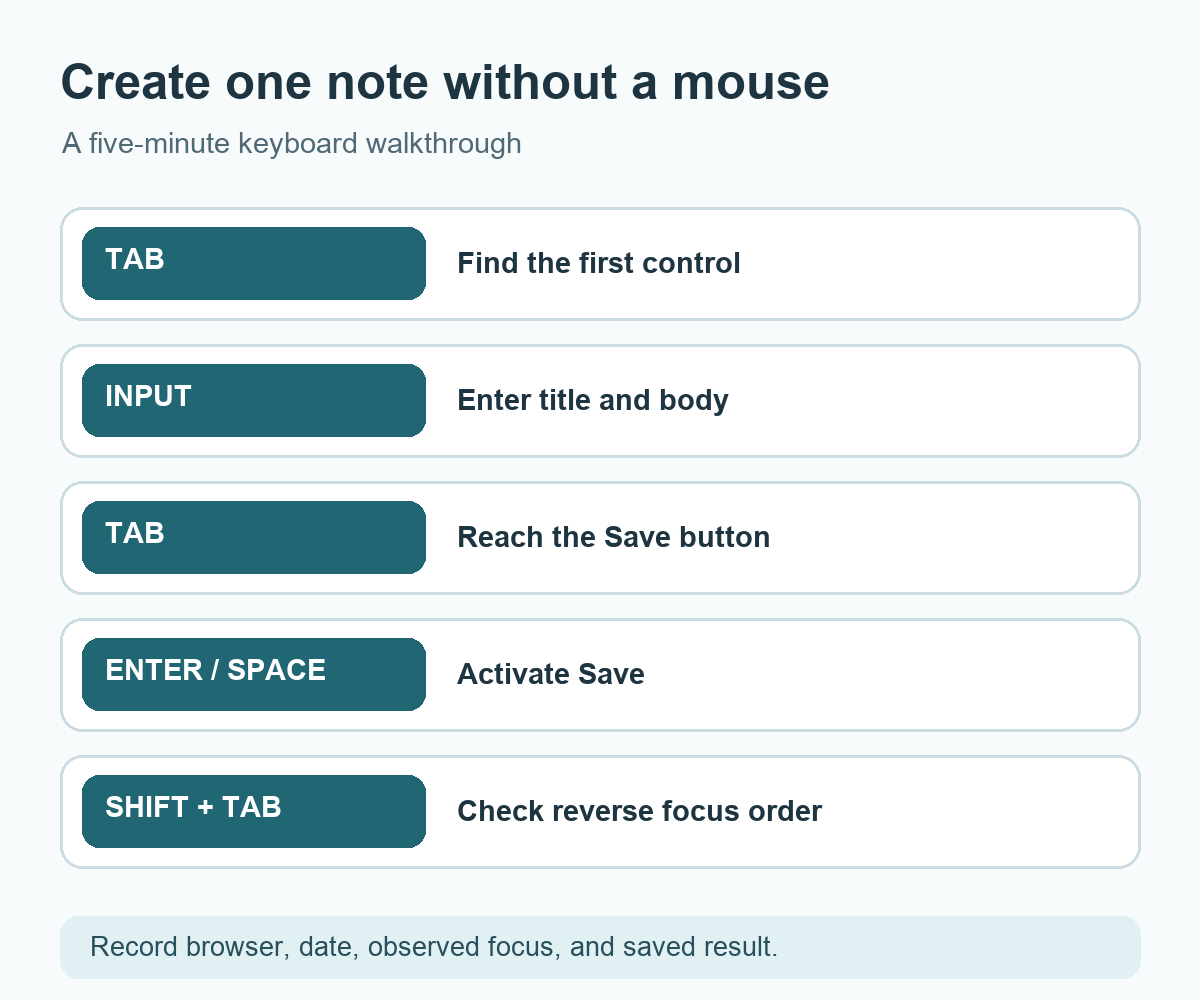
Diagram: a keyboard route runs from the first control through note entry, Save, the displayed result, and reverse focus order.
댓글