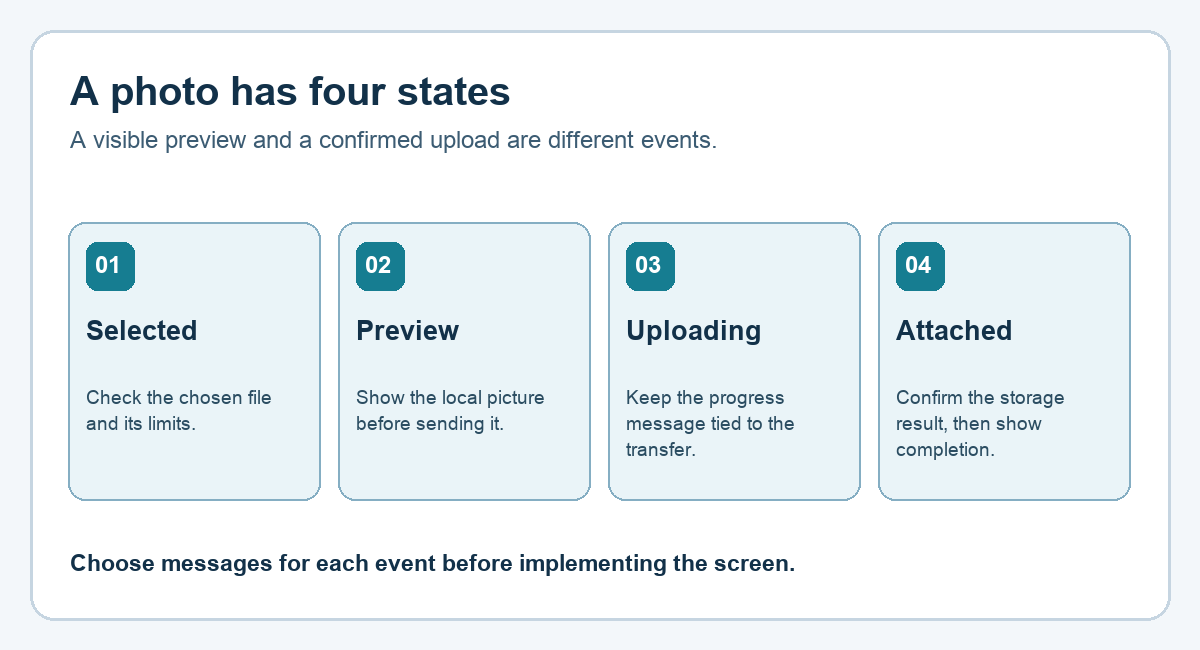
Quick answer: A selected photo, a local preview, an upload in progress, and an attachment confirmed by storage are four separate states. Design a message for each one. Showing a picture on the screen does not by itself confirm that another device can retrieve it.
Consider a fictional notes app that attaches one picture to one note. The flow below is a design example with expected behavior. It does not claim that a server, storage service, or mobile app has been implemented.
Describe the four events
| Event | What the app knows | Possible message |
|---|---|---|
| File selected | A file was chosen on this device. | “Photo selected” |
| Preview ready | The chosen file can be shown locally. | “Preview your photo before saving” |
| Transfer started | The app is sending the file. | “Uploading photo” |
| Storage confirmed | The chosen storage target acknowledged the attachment. | “Photo attached” |
In a device-only app, replace “upload” with the actual local save operation and state that clearly. For an app with a server, the final message should follow the server confirmation used by that product. The diagram below puts the four events in order.
Put limits beside the picker
Before someone selects a file, display the accepted formats, size limit, and number of photos. A practice design might say “JPG or PNG, one photo, up to 5 MB.” Those values are assumptions for this example, not universal platform limits. The actual picker, validation, server, and storage configuration must use the same rule. Keep the selected file name and any explanation of a limit near the attachment control so a user can act on it.
Ask the AI assistant for states and questions
Design the first photo-attachment flow for a personal notes app. Separate file selection, local preview, transfer, and confirmed attachment. Give one screen message and one available action for each state. Ask me whether storage is only on the device or also on a server, and ask for the accepted formats, maximum size, and photo count before choosing validation rules. Include expected outcomes when the user changes the selected file, leaves the screen during transfer, or reconnects after the response is interrupted. Label the result as a design proposal.
Check the states with small scenarios
First, choose a supported sample file and verify that the preview matches that file. Next, change the selection before uploading and verify which file the screen now names. Then interrupt a transfer and verify that the interface shows a state requiring confirmation rather than claiming completion. Finally, reopen the note after a confirmed save and check that the intended photo can be retrieved from the chosen storage target.
These are test cases to run later, not passed results. Use an example image you are permitted to share, and decide how the app handles removal of an attachment and cleanup of a replaced file.
Try it: In your own design, write down the exact event that permits the label “attached.” Then check whether the interface ever shows that label at an earlier step.
Read the Korean edition of this article.
'English Articles' 카테고리의 다른 글
| Turn a Long Notice into Five Informative Cards with AI (0) | 2026.09.23 |
|---|---|
| Organize Research with Chrome Tab Groups: Search, Reading, Sources (0) | 2026.09.23 |
| Practice English with a 10-Minute AI Cafe Role-Play (0) | 2026.09.23 |
| Explain One Rule to Beginners and Practitioners with AI (0) | 2026.09.23 |
| Keep a Note Draft Across Connection Changes: A Three-State App Design (0) | 2026.09.23 |


댓글